Mobile inspection app
A construction inspection app crews will actually use in the field
RTI’s construction inspection app puts the inspection on the phone: scan the QR tag on the inspection point, start its checklist with one tap, take the photos it asks for, and keep working with no signal. Crews run it in the phone’s browser, installed to the home screen.
- Scan, then one tap to start
- Keeps working with no signal
- Large controls on field screens
- Supply lines pressure tested Pass
- Drain slope verified Pass
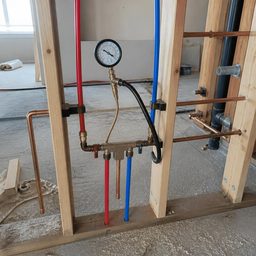
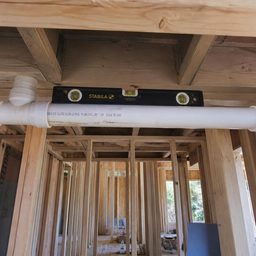
Why field crews abandon most inspection apps
Too many screens
The crew has to find the project, the area and the checklist before the first question.
No signal, no app
The app stops working in a basement, and the walk gets redone from memory at the truck.
Photos in the camera roll
Photos end up in the camera roll with nothing tying them to the inspection or the item.
With RTI
- The scan finds the checklist
- The walk saves without signal
- Each photo belongs to its item
The QR tag carries the context, so the crew starts from the thing in front of them instead of a menu.
Scan, answer, photograph, submit
Scan the tag
Scan the QR tag with the phone’s camera or the in-app scanner, which shows a torch where the phone’s browser supports one, or type the tag number printed on the label. The tag’s screen shows where it is and the checklist assigned to it.
Start with one tap
Start inspection opens the checklist. Focus mode shows one item per screen, with large answer buttons on the field screens.
Photograph each item
Each photo attaches to the item that asked for it and is stamped with the tag number and the time. The submit stays locked, and says what is missing, until every required photo is there.
Work without signal
Answers and photos save on the phone as the crew works. A finished inspection waits in a queue that survives the app being closed, and is submitted when signal returns.
Submit through the gate
The Photo GateThe phone shows the gate’s state as the crew works, and the server checks it again at submit, so an old app version or a dropped connection cannot skip it.
What it doesn’t do
- It is not in the App Store yet. Crews use it in the phone’s browser, installed to the home screen; a native iPhone app is in beta testing, and Android phones use the browser.
- It needs signal to open a tag the phone has not loaded recently. Once an inspection is open, it can be finished and queued with no signal.
- It does not judge the photos. The gate counts the photos each item needs; whether they show the work is the reviewer’s call.
What to test before you put an app in crews’ hands
Count the taps on a real phone
Count them on a real device. Every extra screen is a reason to write it on paper instead.
Take the demo device outside
Field surfaces need far more contrast than an office dashboard. Take the demo device outside before you buy.
Close the app mid-inspection
Phones get killed by the operating system all day. Ask what happens to a half-finished inspection.
Ask where the rules are enforced
It should enforce them for the user's benefit and the server should enforce them for yours.
Three moments it answers
Use case 1
A riser with no signal
When a crew inspects a riser in a stair core with no signal, the inspection and its photos wait in the queue and are submitted when the phone reconnects.
Use case 2
A scuffed label
When a tag’s label is scuffed or too dark to scan, the crew types the tag number printed on it instead, and where the phone’s browser supports it the scanner’s torch lights the tag.
Use case 3
One photo short
When the crew reaches submit one photo short, the button stays locked and names the item still waiting for its photo.
Questions about the inspection app
6 answers
- Is there a native app?
- A native iPhone app is in beta testing and not yet in the App Store. Today crews use RTI in the phone’s browser, installed to the home screen, on iPhone or Android, and an inspection can be finished and queued with no signal.
- Does the app work without signal?
- Yes. Answers and photos save on the phone as the crew works, and a finished inspection waits in a queue that survives the app being closed. It is submitted when signal returns, and the Photo Gate checks it on the server as usual.
- How many taps from scan to the first question?
- One. Scanning the tag opens its screen, which shows where the tag is and the checklist assigned to it, and Start inspection opens the first item. If no checklist is assigned yet, the screen says the tag isn’t ready.
- Do crews have to sign in every time?
- No. The session stays signed in on the phone and refreshes itself, and with no signal the app trusts the stored session. A new browser is confirmed once by an emailed code and then trusted for 30 days.
- Does the phone enforce the same rules as the server?
- The phone shows the gate’s state as the crew works, so they can see what is missing before they try. The server enforces it at submit regardless, so a phone that is out of date or offline cannot get an incomplete inspection through.
- Is it readable outdoors?
- Field screens are dark by default, with a Sunlight palette in Profile for direct sun. In both, every text role is at 7:1 contrast or better, nothing is smaller than 14px, and answer buttons are 56px tall. Take it outside on your own phone before you decide.
Put it in the field on your next walk
RTI runs in the browser on any phone and installs to the home screen, with the same checklists, the same gate and the same record the office sees.
30-day trial · No card required